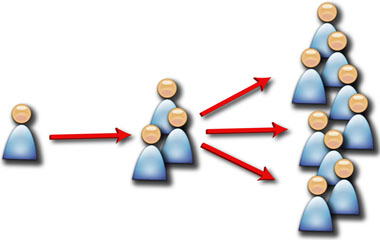
Leverage your members' networks through LinkedIn
Lesson 5 is about building your network on LinkedIn from your existing contacts. I recommend you take your hotmail, gmail, outlook, or whatever email address book you use – and process it against LinkedIn.
A couple of screenshots of the LinkedIn Options/Pages for having LinkedIn plow through your address book are below:
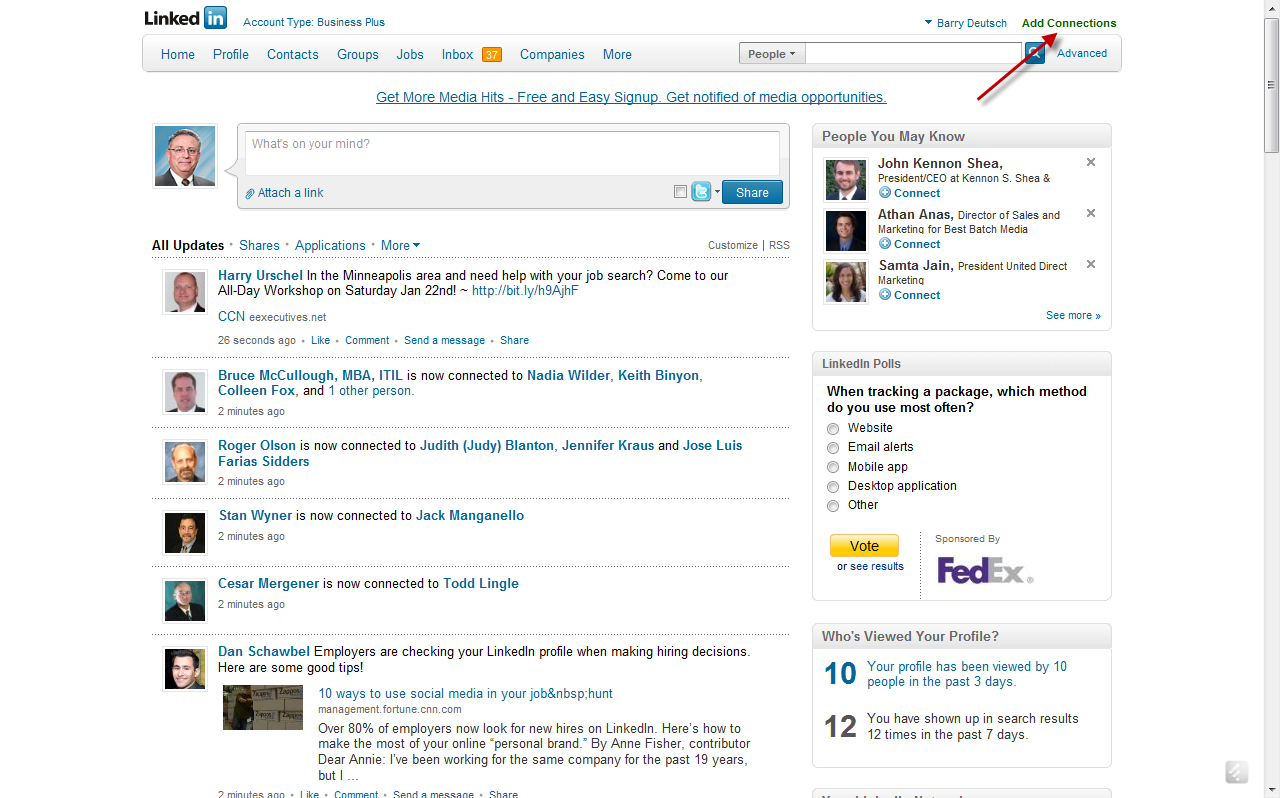
You would start the process by clicking the "add connections" button in the upper right hand corner of your "home" screen.
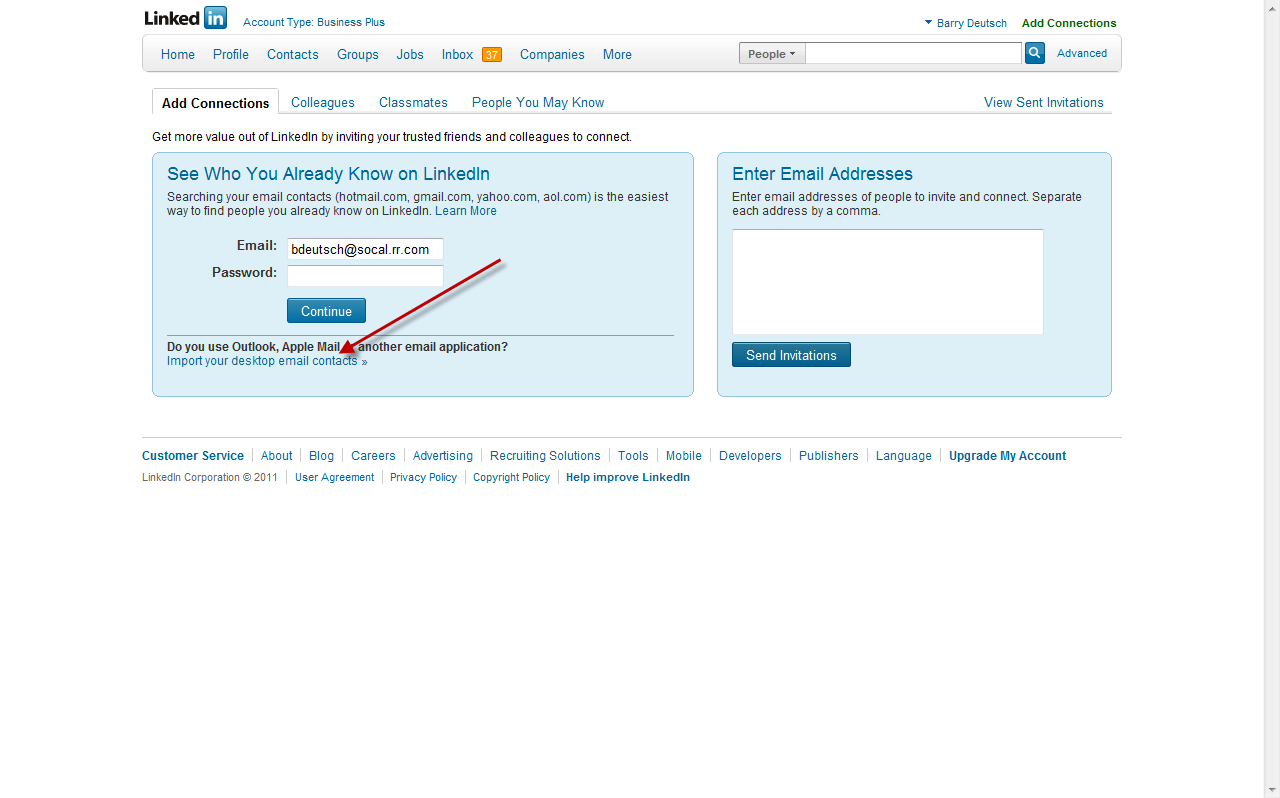
Linkedin then gives you a variety of options to upload your contacts and process them into LinkedIn, during which LinkedIn will look for which people you know already have a LinkedIn Account. If you keep your contacts in a desktop application like Outlook, you'll first have to export your contacts into a file and then upload them into LinkedIn. Instructions are provided on the site. If you keep your contacts in web-based program, such as gmail or yahoo - you can process the contacts directly into LinkedIn.
Now you're at the stage where LinkedIn will show which contacts are on LinkedIn and which ones are not. LinkedIn can either send a standard message to every person on your list that is already on LinkedIn. I choose not to do it this way since it’s so impersonal. Instead, I take each of those contacts which LinkedIn stores under uploaded contacts (that it found are already on Linkedin) separately and I go one-by-one through the list sending a unique message that tells each person how I know them, when we meet, something about them that would want to compel them to connect with them.
IMPORTANT NOTE: If 5 people whom you have sent an invitation to indicate that they do not know you - LinkedIn will lock your account and you'll have to know the person's email address to send a connection invite. The more you can elaborate in your message on how you know this person - the higher the probability they will not click the dreaded "I do not know this person" button. If your account does get frozen for connection invites, you can usually send a note to customer service asking for it to be restored. Unless you're abusing the connection invites, LinkedIn will restore your account.
I find the invitation to connect "acceptance metric" is much higher when the note is personalized. This takes a little longer to do – especially if you have a lot of contacts.
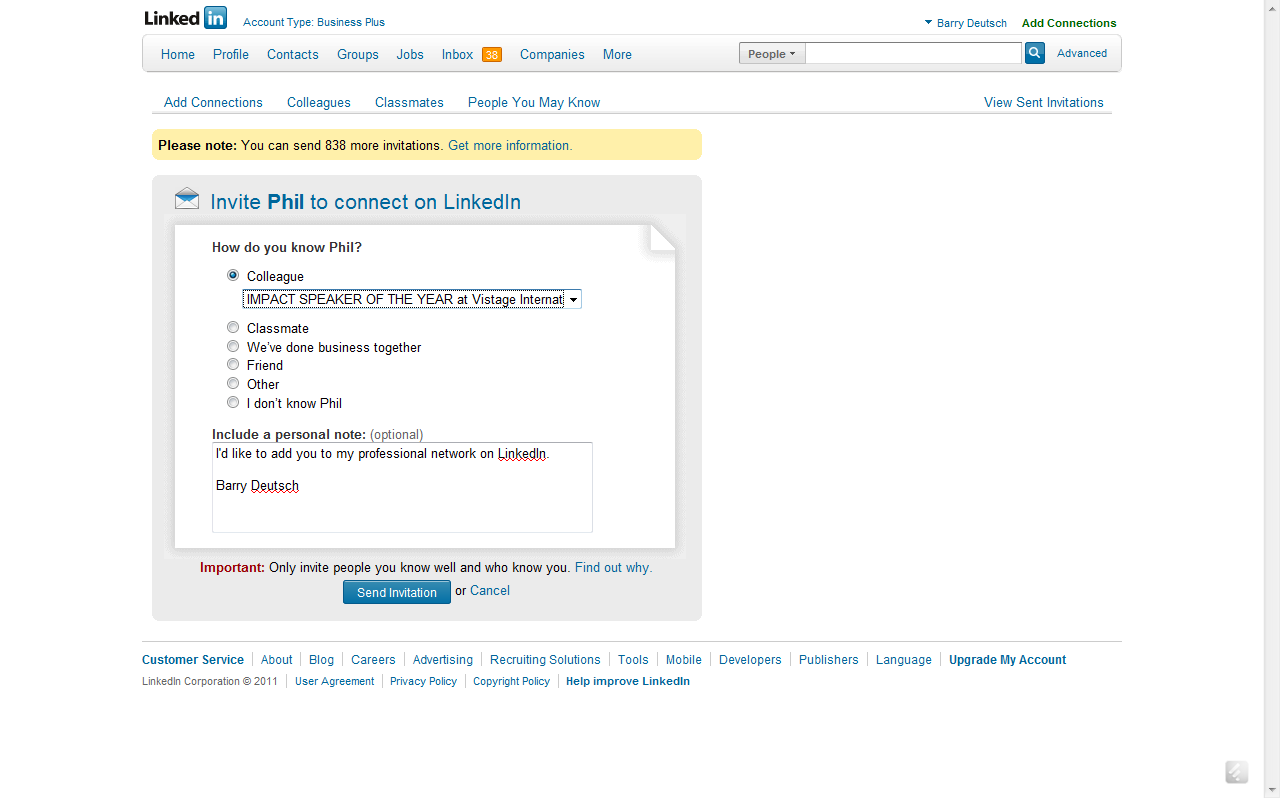
I would recommend taking an initial 15-30 minutes and processing your email address book into LinkedIn. Then do 10 personalized invitations to those contacts. Try to set a goal of doing 10 every day - writing personal connection notes - until you’ve worked through your entire email address book now on LinkedIn.
Lesson 5 Action Item
1. Process your address book against LinkedIn to see which of your contacts are on LinkedIn
2. Send a Personal Note to 10 of your contacts inviting them to connect with you
Lesson 5 Discussion Points
In the LinkedIn Chair Discussion Group for Leveraging Social Media, please share with the group what you’ve done in working through integrating your address book into LinkedIn.
Problems, issues, concern, “how do I do this?”.
What’s your experience with having contacts accept your invitation, especially given the fact that they are already on LinkedIn and they are in your address book?