
Lesson 9 is about exploring the connections of your other contacts to see if anyone of them might have potential contacts for you of CEOs or Trusted Advisers.
Lesson 9 is also about using a couple of LinkedIn Tools for managing your connections that allow you to slice/dice/sort/communicate with sub-groups or categories of your contacts.
Looking at the Connections of Your 1st Degree Contacts
I know this probably feels like taking a magnifying glass to all your connections; however, there is no alternative to exploring who your members, TAs, and other network contacts already know. I know that it's a painful effort since LinkedIn does NOT provide any filtering/sorting tools for looking at your 1st degree contacts' connections. Perhaps, this is the way they avoid people spamming each other - they make it such a painful task to review one-by-one contacts' connections that most people give up and avoid it.
I am assume you've started doing the following tasks:
- Scanned the connections of your Members for Potential CEOs
- Scanned the connections of your Members for Potential Trusted Advisers
- Scanned the connections of your Trusted Advisers for Potential CEOs
- Scanned the connections of your Trusted Advisers for other Potential Trusted Advisers
- Now we're adding scanning your other network contacts, such as Board Members, Family, Friends,former co-workers, folks you know from trade associations, folks you know from the Soccer Committee, the PTA, your alumni association, and so on.
This is a long-term continuous process. It's not something you would all at once. I would like to recommend you invest 15 minutes on a daily basis to start looking through your network's connections.
The larger your network, the more connections you get to see, the more people LinkedIn suggests you should connect with, and the easier it is to see the spider web of connections to CEOs/Trusted Advisers/Other Influencer-Connectors in your local community. Leverage from LinkedIn occurs when you have a "critical mass" of connections that are in your target audience (CEOs, TAs dealing with CEOs, and others who know CEOs).
I recorded the total number of your connections before we started the e-Course. Within a few months, you should be well north of the 500 connection range. Real leverage starts to come when your total connections are in excess of 1,000.
Managing Your Connections on LinkedIn - Profile Organizer
I've touched on this a couple of times and I've mentioned it to a few of you in our phone conversations.
I recommend you invest in the $50 Business Pro Account that LinkedIn offers. There are two excellent features which you will need to manage your connections that do NOT come with a FREE Account. The first is the Profile Organizer to put people in broad categories and the second is the ability to "tag" your connections.
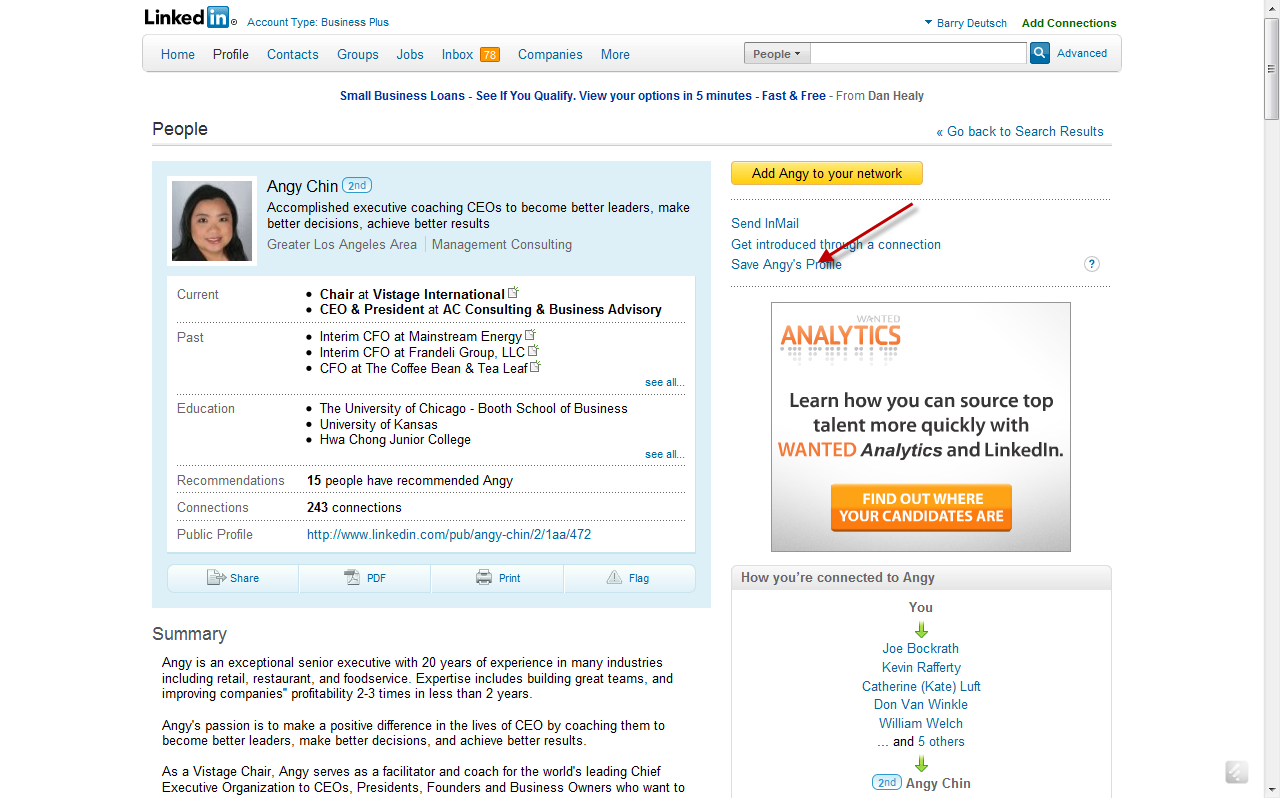
You'll notice in the example above, on the right hand sidebar, when viewing a "record" in LinkedIn (regardless of whether they are a 1st degree connection or NOT), you would click the option for "Save Profile". Once you save the profile, your screen should like the one below:
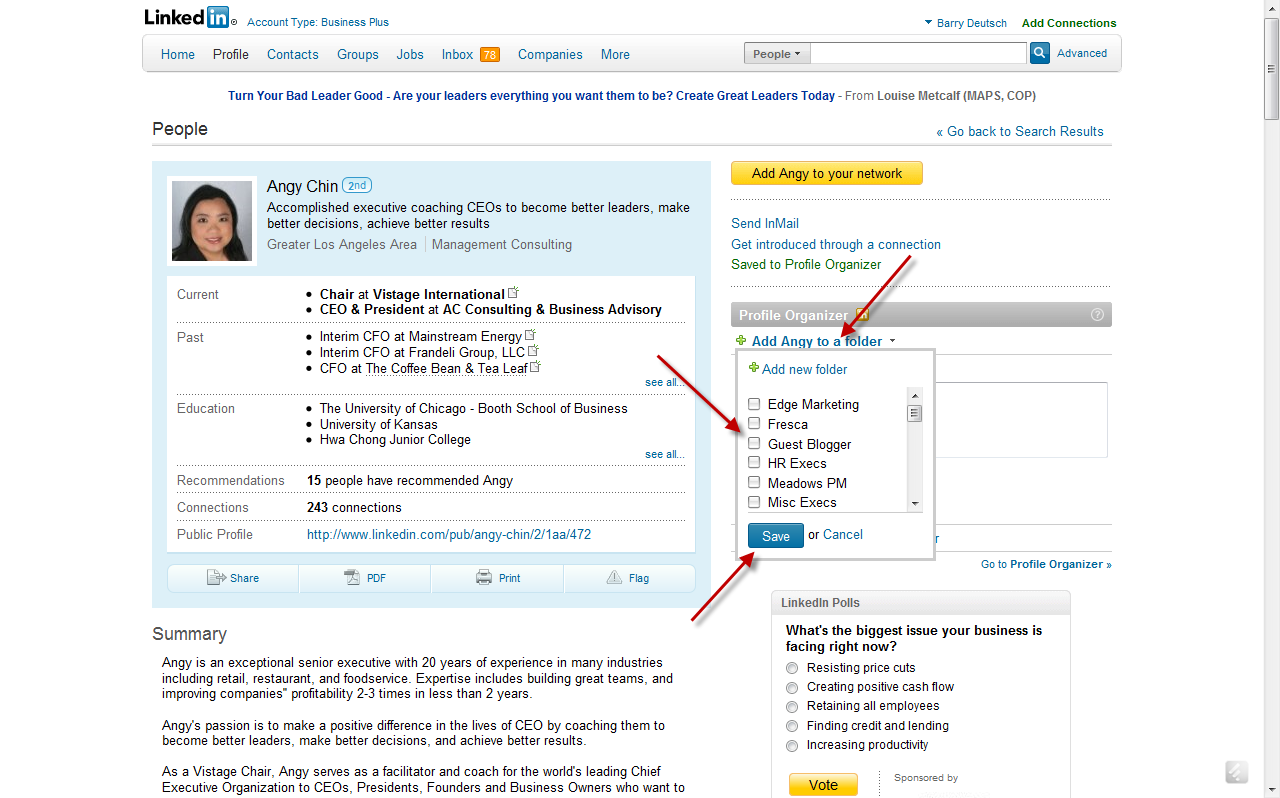
There are 3 steps after you save a contact to the profile organizer.
Step1: Click the button "Add ___ to a Folder" to add a contact to a folder. In the Business Pro Account, you can have up to 25 folders. These are your main category headings or file folders of how you are going to organize your contacts. In a moment, we'll talk about segmenting them further within this broad "file folder" category.
You can add contacts to as many folders as you like. One of my folders is called "Vistage Chairs" even though you cannot see it on this screen shot.
Step 2: Click one or more of the check boxes to add your contact to a folder.
Step 3: Click the save button to save your actions of adding your contact to a folder. LinkedIn doesn't always automatically refresh the screen to reflect your actions - you might have to manually refresh the screen to see that your actions took effect. After going through these steps, your screen would not look like the one below:
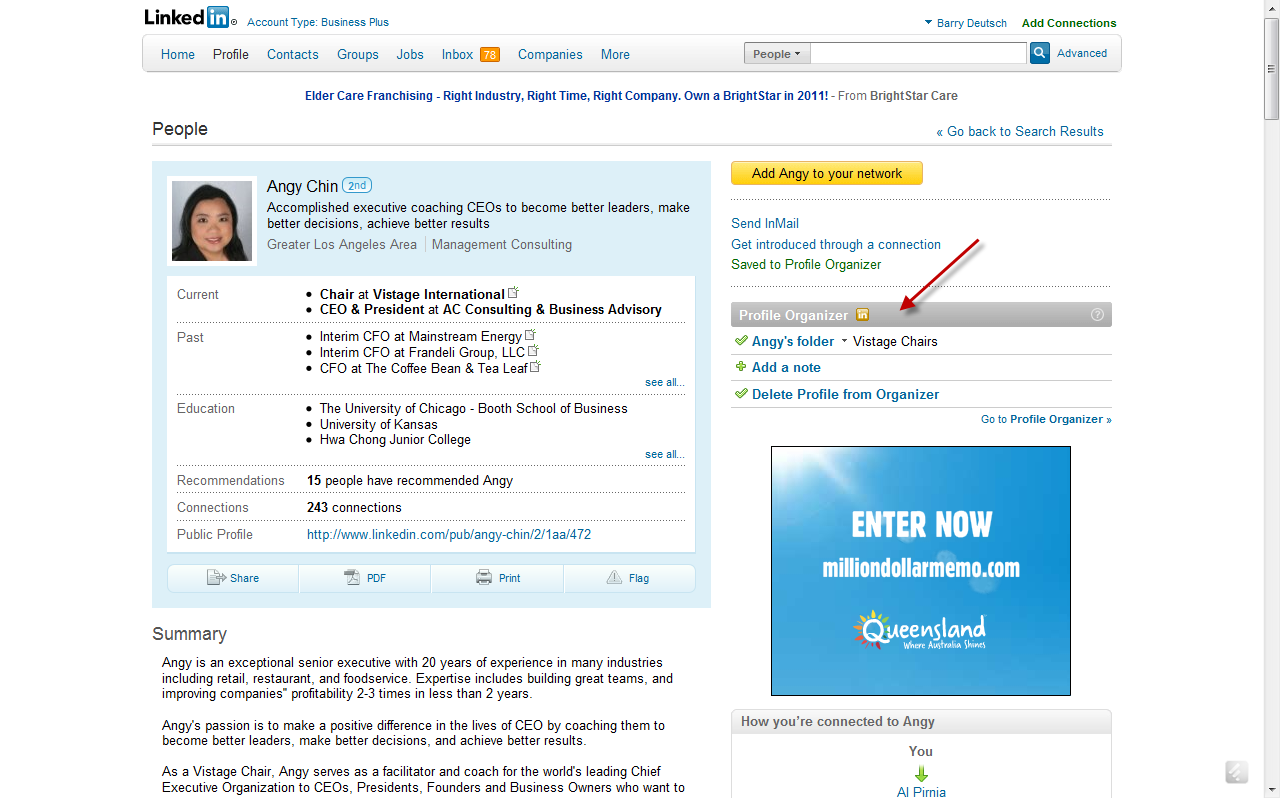
As you can see, Angy has now been saved into a file folder within the Profile Organizer. You can view your contacts in your Profile Organizer by clicking on the Contacts Tab on your top menu bar, clicking on Profile Organizer on the sub-menu bar, and then selecting the folder you would like to view. Now all your contacts for a given folder are in one place.
As a side note, I also save on each record in the contact notes when I send a note or have a conversation with someone. When I speak with that contact, I can instantly bring up a history of our interaction and communication, including the items I've sent, when we last spoke, and any action items.
Refining Your Management of Contacts - Using the Tagging Feature
LinkedIn provides another tool that IMHO is worth the $50/mo price tag for the Business Pro Account. This feature is called "Tagging". I use to segment or sub-categorize my contacts in smaller groups than the broad file folders in Profile Organizer.
You must be a first degree connection with a contact to be able to "tag" them. If you are a first degree connection, you'll see an option on the sidebar on their profile right below where the email address is presented. The screen shot below shows the "edit tags" option:
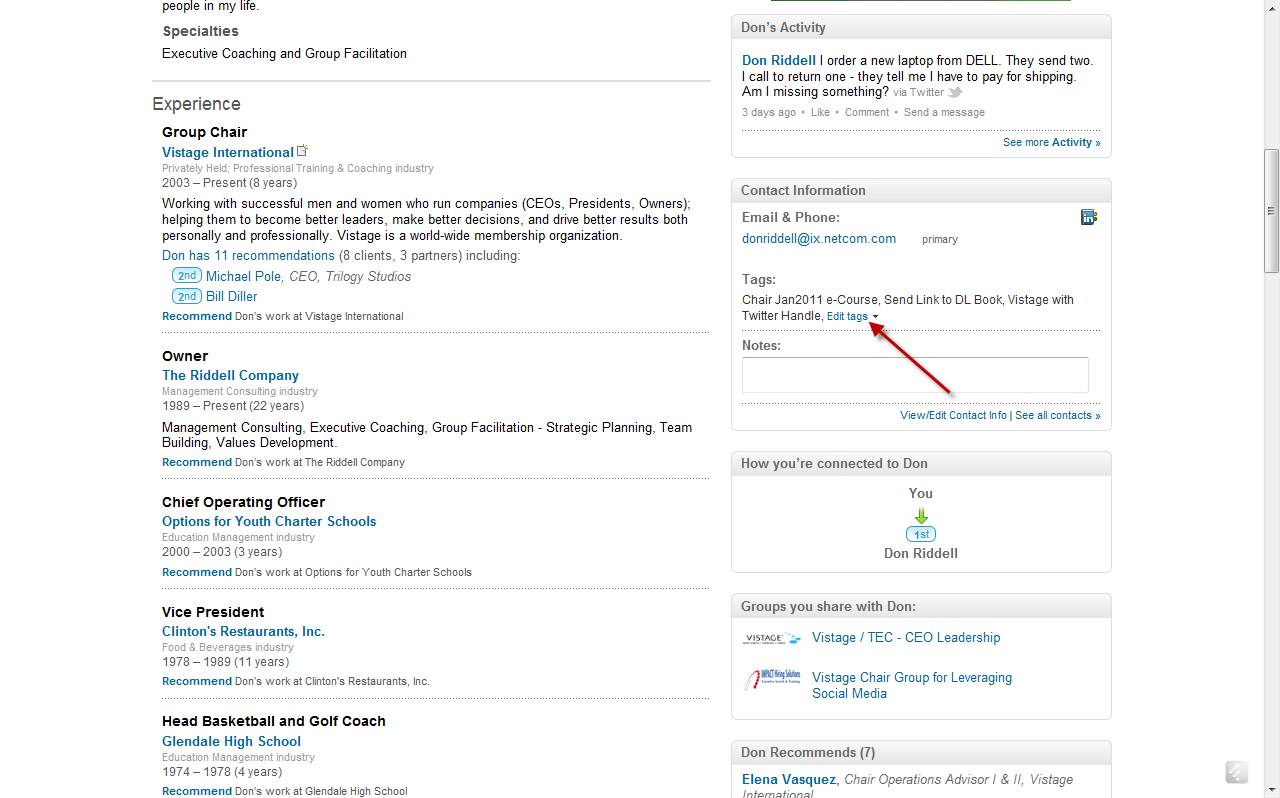
The profile above is for Don Riddell. Notice the arrow pointing to the link titled "edit tags". You'll need to scroll down the profile to see this option on the right hand side. You'll want to click this link. Once you click the link, you'll see the following screen:
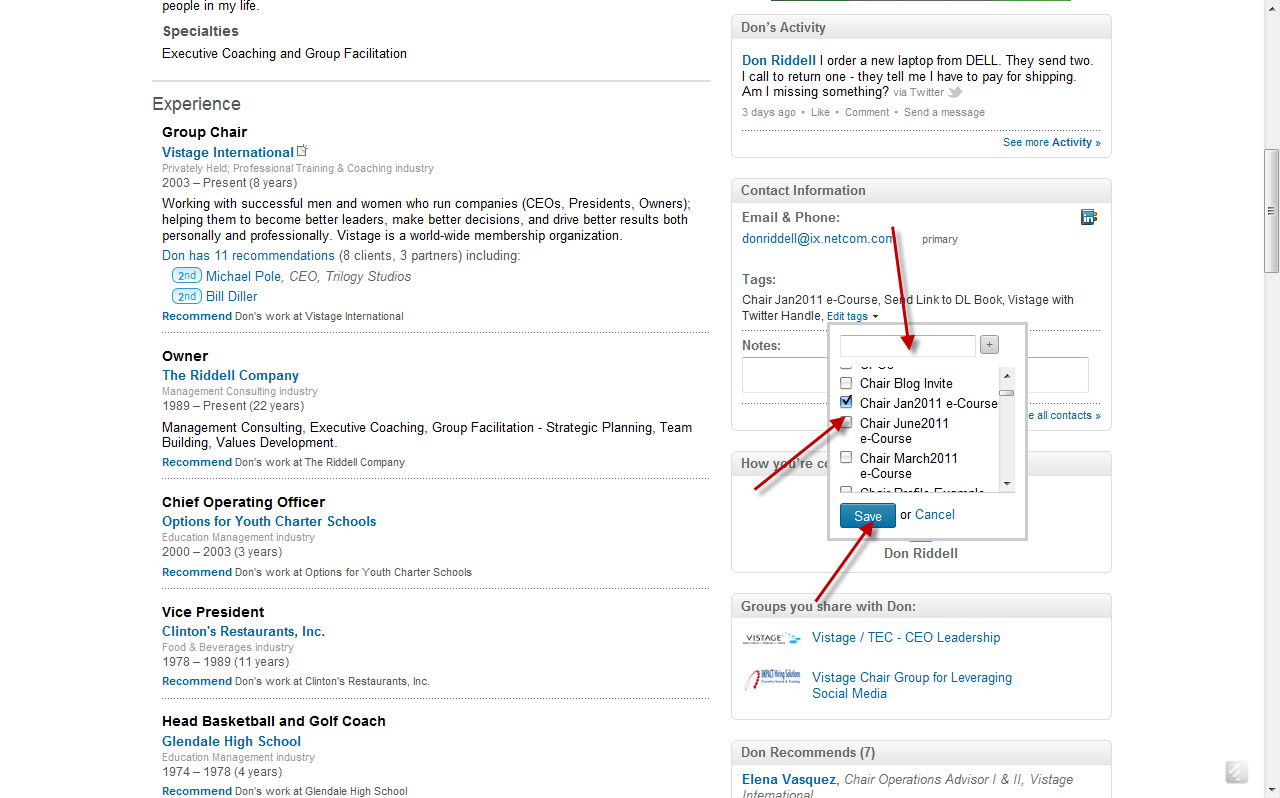
Once you click edit tags, you'll see a little box appear with your tags. This is illustrated in the screen shot above. Select a checkbox for the tag you desire.
So, I organize some of my tags around my connections to others in the Vistage/TEC Community. You have an unlimited number of tags you can create. I probably have 6-7 tags for Chairs.
My tags would like like this:
- Spoken To Vistage/TEC Group
- Have Not Spoken to Vistage/TEC Group
- Chair in Jan 2011 Chair e-Course
- Chair in Mar 2011 Chair e-Course
- Member of LinkedIn Chair Discussion Group
- Invited to Attend Chair e-Course
- Send Download Link for Free Copy of Book
You can also create a new tag on the fly by entering the tag into the area by the PLUS Sign at the top of the box. Once you've added a tag or clicked on a checkbox for the tag, make sure to click on the save button to save your selections.
Now, let's say you would like to look at everyone you've tagged to a particular tag. The screen shot below illustrates how to review your tagged groups. You would first click on contacts on the top menu. You'll immediately see the tags on the left hand side of the screen for the tags you've created. You can click on manage tags to add or delete tags. Unfortunately, you cannot edit the tag name once you've created the tag.
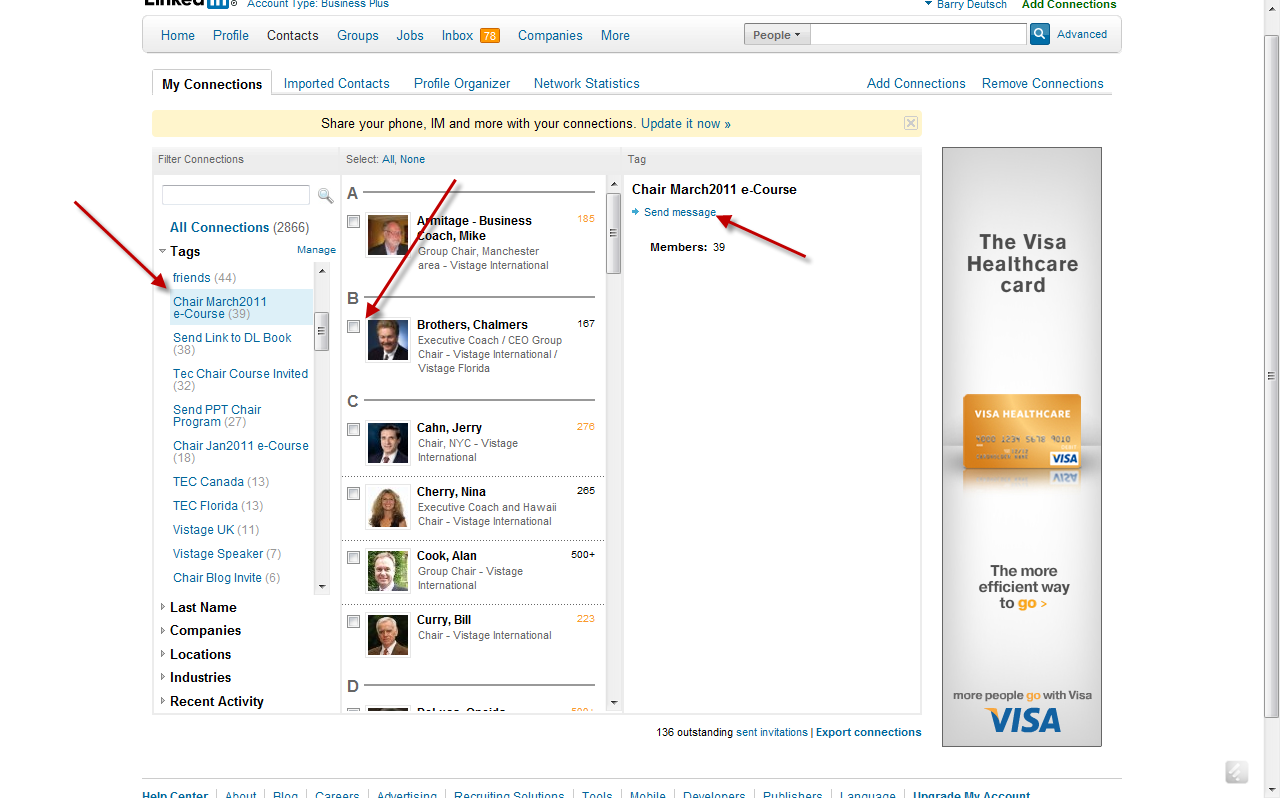
Now you can click on the tag to see just those individuals whom you've tagged to that group. In this example, I have created a tag for everyone currently enrolled in the Chair e-Course. I can click the checkbox next to their name to send an individual message, I can send a message to the entire group, in sending the message I can select whether or NOT I want everyone else to see the distribution list, and I can have LinkedIn send me a copy of the message for my archive of messages sent.
Imagine the possibilities of communicating with sub-sets/segments of your database of LinkedIn Contacts. You might have different messaging and frequency of messaging that goes out to:
- Prospects you can close in the next 60 days
- Prospects that can't be closed for 90-180 days
- "Super Breed" Trusted Advisers
- Other Trusted Advisers
- Your Members
- Your Close "Kitchen Cabinet" of Trusted Advisers
- Other Chairs
The list of segmentation for marketing and messaging is endless and only limited by your creativity and imagination.
Lesson 9 Action Items
- Review your "other contacts" for CEOs and TAs
- Start categorizing your contacts by putting them in folders in the Profile Organizer
- Start Tagging your contacts for specific marketing/messaging
Lesson 9 Discussion Points
Are you using tagging and file folders now for your contacts? How do you use these in marketing and sending messages?
What are thoughts about using these two tools of tagging and file folders to categorize your contacts?
What's the strength of your network outside of CEOs and TAs who might know other CEOs directly and be able to refer them to you? Have you looked back in your associations, alumni groups, non-profit and civic work for other contacts?